Most STR operators set up PriceLabs, connect their listings, and call it done. They adjust the base price, maybe set a minimum, and let the algorithm run. That’s a fine starting point. But after auditing hundreds of PriceLabs accounts as part of our revenue management work at Freewyld Foundry, I keep seeing the same pattern: operators have access to features that could materially improve their revenue and KPI accuracy, and they have no idea.
PriceLabs setup guide: The difference between basic configuration and full optimization often comes down to seven hidden features that most operators never activate, including combined listings, subgroups, historic data upload, safety minimum price controls, revenue forecasting, customizable rental revenue formulas, and check-in/check-out profiles.
Some of these features are buried. Some require contacting PriceLabs support to unlock. A few are surprising even to operators who have used the platform for years.
This guide covers seven of them. If you manage a portfolio with any complexity (multiple markets, master listings, seasonal restrictions, or historic data gaps), at least a few of these will change how you use the platform.
Key Takeaways
- Combined listings fix distorted KPIs when a master listing absorbs revenue from individual units
- Subgroups let you apply settings by both market and bedroom size simultaneously
- You can upload historic booking data directly to PriceLabs when switching PMSs
- Safety minimum price is on by default and can prevent bookings on weekday dates far out
- PriceLabs’ forecasting tool projects revenue and occupancy for the full year ahead
- The rental revenue formula is customizable. You decide what counts as revenue
- Check-in and check-out profiles are a cleaner alternative to stacking calendar overrides
- Several of these features are request-only and require contacting PriceLabs support
The Features Hidden Behind a Support Request
PriceLabs is a deep platform. The surface-level controls (base price, min/max price, minimum stay) are visible by default. But a meaningful layer of functionality lives in settings menus, custom seasonal profiles, and request-only tabs that don’t appear until you ask for them.
After going through hundreds of accounts as part of our free revenue management audits, the same features keep coming up missing. When I ask operators whether they’re using them, the answer is almost always the same: “I didn’t know you could do that.”
Here’s what they’re missing.
Feature 1: Combined Listings
What it solves: Distorted KPIs when a master listing absorbs revenue from individual units
If you have a master listing setup (a duplex where you rent either individual floors or the whole property, or a building with apartments that can also be booked as a block), you already know the KPI problem. When a guest books the entire building, that revenue flows to the master listing. The individual units show zero revenue and zero occupancy for those nights, even though they were effectively “booked.”
The result: your performance data is distorted. Occupancy looks low for the individual units. ADR looks wrong. RevPAR comparisons are meaningless.
Combined listings fixes this. Once enabled, PriceLabs routes revenue from the master listing back to the individual units based on a proportional split. A building booking gets divided across the four apartments. Each unit shows occupancy and revenue for those nights.
The practical impact shows up immediately in your leaderboard reports. Instead of the master listing absorbing all the revenue while the sub-units look empty, each unit gets credit. Your performance comparisons become accurate.
One limitation: PriceLabs currently splits revenue equally across all units in a combined listing. If you have a three-bedroom and a studio, they get the same allocation. A weighted split based on unit size or base rate would be more accurate, and worth requesting from PriceLabs as a product improvement.
How to access it: This is a request-only feature. Contact PriceLabs support to have it activated. Once enabled, it appears as a tab under Manage Listings.
Feature 2: Subgroups
What it solves: Conflicting grouping needs when your portfolio spans multiple markets and bedroom counts
PriceLabs groups let you apply settings (minimum stay, health-score weights, pricing customizations) to a batch of listings at once. Standard groups work well when all your properties share one meaningful variable: same market, same bedroom count, same property type.
But what if you manage a portfolio across three markets, and each market has a range of bedroom sizes? Do you group by market or by bedroom count?
With standard groups, you have to choose. With subgroups, you don’t. You create a parent group for each market, then subgroups within each market for bedroom size tiers: one-beds, two-beds, three-plus. That lets you apply market-level settings at the group level and bedroom-specific settings (like minimum stay rules that differ by size) at the subgroup level.
The result: more precise customization without an explosion of individual listing overrides.
| Group Structure | Subgroup Structure | What You Control at Each Level |
|---|---|---|
| Market A | 1-2 bedrooms | Market-level: health score, seasonality |
| Market A | 3+ bedrooms | Bedroom-level: minimum stay, weekend pricing |
| Market B | 1-2 bedrooms | Independent from Market A settings |
| Market B | 3+ bedrooms |
How to access it: Request-only. Contact PriceLabs support.
Feature 3: Direct Historic Data Upload
What it solves: Missing booking history when switching PMSs
PriceLabs pulls data directly from your PMS. That works perfectly when all your booking history lives in one place. But if you’ve switched PMSs (and not every platform makes it easy to migrate historic data), you end up with a gap. PriceLabs is missing months or years of bookings, which affects every metric that depends on historical context.
The fix is to upload that data directly to PriceLabs. Under Portfolio Analytics, then KPIs and Historic Reports, there’s an option to download a sample CSV. You fill it in with your historic booking data, then upload it back.
The CSV format is specific. PriceLabs has a detailed help article covering the required fields and formatting rules. One practical tip: if you have a lot of bookings to format, you can feed both your raw booking export and the PriceLabs sample CSV to Claude and have it format the data automatically. The structure is finicky, but an LLM handles it cleanly.
How to access it: This is also a request-only feature. Once enabled, the upload option appears as three dots next to the PDF download button in Historic Reports.
Feature 4: Safety Minimum Price
What it solves: Protecting revenue far out, but watch for weekday overbidding
Safety minimum price is switched on by default, so unlike the features above, you may already be using it without realizing it. What it does: for every date in your future calendar, PriceLabs calculates the average price you got booked at during the same week last year (using a three-week window around that date), then sets that as a floor 180+ days out. The default is 110% of last year’s average.
The logic makes sense. Far-out dates are vulnerable to being underpriced before demand signals sharpen. A price floor based on historical booking data is a reasonable way to protect yourself.
The problem is the averaging method. PriceLabs doesn’t separate weekend bookings from weekday bookings when calculating that floor. If you had a strong run of weekend bookings and slow weekdays last year, the average will land somewhere in the middle: too high for weekdays, possibly appropriate for weekends.
In practice, this can mean a Monday in December gets a safety minimum of $315 when the realistic market rate for that date is $180. The unit sits empty while that floor prevents a booking that would have happened at a lower price.
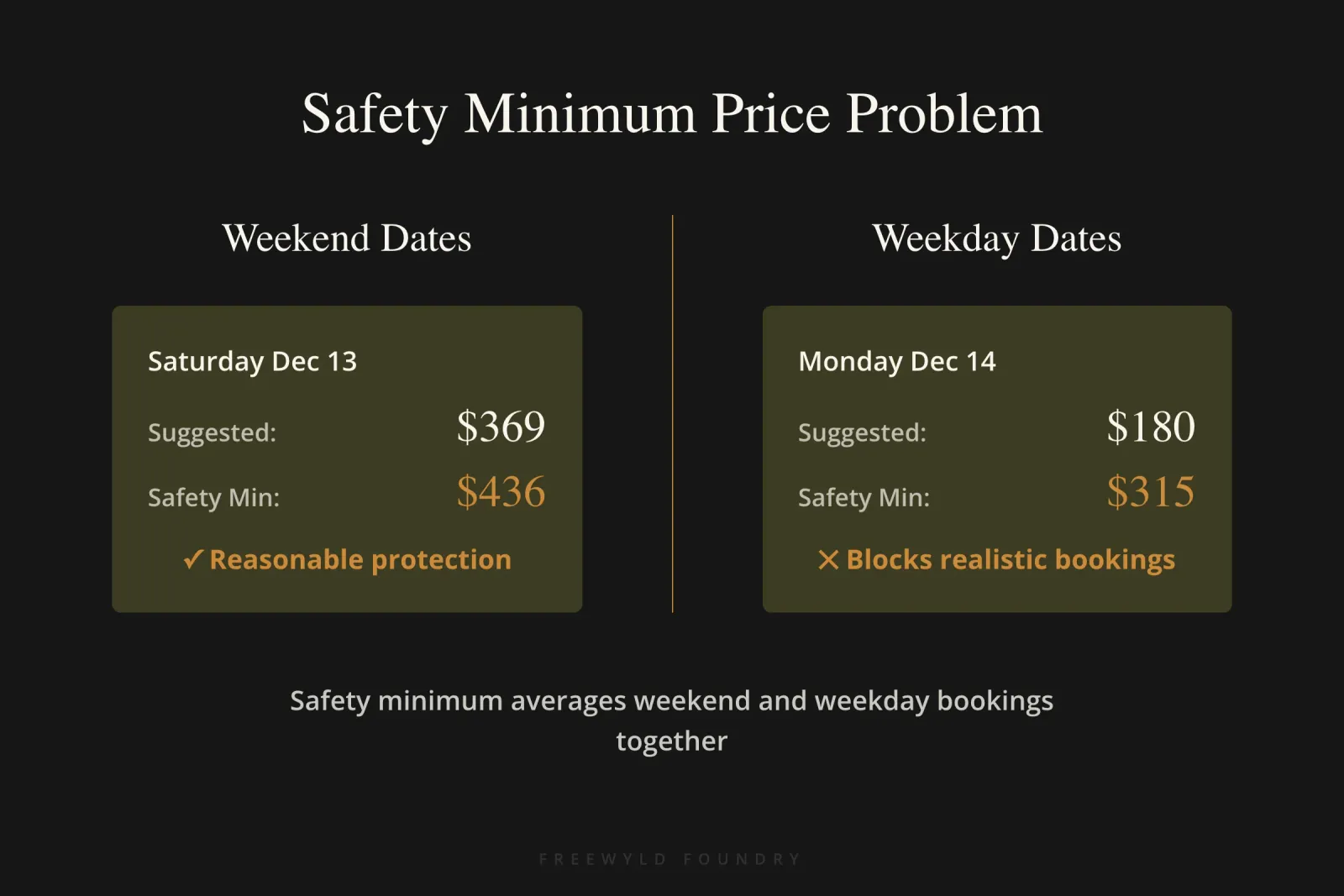
| Date | PriceLabs Suggested Price | Safety Minimum Applied | Notes |
|---|---|---|---|
| Saturday Dec 13 | $369 | $436 | Based on surrounding weekend bookings |
| Sunday Dec 13 | $369 | $436 | Inflated by weekend average |
| Monday Dec 14 | $180 | $315 | Weekday, but averaged with weekends |
If you’re in a market with a short booking window, this probably doesn’t hurt you. People aren’t booking December dates months ahead anyway. But for markets where holiday dates book early (Christmas, Thanksgiving, ski season), it’s worth reviewing your forward calendar to see if safety minimums are priced too high.
You can turn it off entirely, set a custom multiplier, or leave it on and monitor manually. Under your listing customizations, go to Safety Minimum Price to adjust.
Feature 5: Revenue Forecasting in Report Builder
What it solves: Understanding projected performance for the full year ahead
Under Portfolio Analytics, then Report Builder, there’s a standard report called “Forecast Rental Revenue and Occupancy.” PriceLabs uses your historical booking patterns to project both revenue and occupancy for each property through the rest of the year.
The forecasts update roughly weekly. They’re not perfect. Performance varies and PriceLabs acknowledges the estimates can be off. But for portfolios where historic data is stable and consistent, they tend to be reasonably accurate.
Practical uses:
- Comparing projected performance across units in your portfolio
- Setting expectations with owners before the year plays out
- Identifying units where the forecast looks weak enough to warrant a pricing review
You can also add a forecasted revenue column to any custom report you build, which makes it easy to set a revenue goal per unit and track actual vs. forecast through the year.
Feature 6: Rental Revenue Formula
What it solves: Controlling exactly what “revenue” means in your PriceLabs reports
PriceLabs tracks two revenue figures by default:
- Rental revenue: The nightly rate only. No cleaning fees, no OTA commission adjustments.
- Total revenue: The host payout. Includes cleaning fees, excludes OTA commission.
If these definitions don’t match how your business measures performance, the reports are misleading. Some operators want to include cleaning fees in rental revenue. Others want total revenue to include the gross amount before the OTA takes its commission (useful when presenting to investors who want the highest top-line number).
Under Settings, then Revenue Formula, you can define both figures yourself. The available inputs include: nightly rate, cleaning fee, total fees, host service fee, OTA commission, total discounts, rental income, and security deposit. You can build any combination and test it against your most recent booking to verify the math before saving.
| Revenue Definition | Default Includes | Custom Option |
|---|---|---|
| Rental Revenue | Nightly rate only | Add cleaning fee, adjust for discounts |
| Total Revenue | Host payout (nightly + cleaning, minus OTA fee) | Include gross before OTA commission |
Feature 7: Check-In and Check-Out Profiles
What it solves: Holiday and seasonal restrictions without cluttering your calendar with overrides
Most operators who want to block check-ins or check-outs on specific dates (Thanksgiving, Christmas, New Year’s) do it by going directly to the calendar and adding overrides. That works, but it creates noise. By the time you’ve added a price adjustment, a minimum stay rule, and a check-in restriction to the same date, the override becomes hard to read and easy to make mistakes on.
Check-in and check-out profiles give you a cleaner approach. You create named profiles like “Thanksgiving” and “New Year’s Day” that define which days block check-in or check-out. Then you apply those profiles to your custom seasonal settings. The calendar restriction is driven by the profile, not by a direct override.
The benefit: your calendar stays clean. If you want to also add a 10% price discount for a holiday date, you can add that override without it stacking on top of a check-in restriction that’s already cluttering the same day. The two are managed separately.
We use this for our Idlewild portfolio. Thanksgiving and New Year’s Day have dedicated profiles that block turnovers on the holiday itself. Those profiles are applied in the seasonal settings and persist year-over-year without needing to be reset.
How to access it: This is available under Customizations, then Profiles, in the standard PriceLabs interface. No feature request needed.
How to Access Request-Only Features
Four of the seven features above (combined listings, subgroups, historic data upload, and direct data upload) require contacting PriceLabs support before they appear in your account. This is the main reason they go unused: if it’s not visible on the screen, most operators don’t know to ask.
The request process is simple: email or chat with PriceLabs support and ask to have the feature enabled for your account. They typically turn it on quickly.
One important follow-up step: even after a feature is approved, it may not appear in your account until you activate it in the Control Panel. Under your PriceLabs settings page, there’s a Control Panel section with toggles for advanced features. If something was just enabled for your account and you still don’t see it, check there first.
The Quickest Wins: Where to Start
If you’re going to act on this today, here’s how to prioritize based on your portfolio:
If you have master listings: Enable combined listings first. This one change fixes your KPI accuracy immediately and makes every report more trustworthy.
If you’re managing across multiple markets: Request subgroups. The configuration takes some setup time, but it unlocks a level of precision you can’t get with flat groups.
If you recently switched PMSs: Check whether your historic data gap is affecting your pricing. If it is, the direct upload path is worth the effort.
If you’re in a market where holiday dates book far in advance: Review your forward calendar now. Safety minimum price is on by default and may be pushing your December and spring rates higher than they should be.
If you want cleaner calendar management: Build check-in and check-out profiles before the next holiday season. It takes 20 minutes and you won’t have to do it again.
FAQ
What is PriceLabs setup and what are the basic steps?
PriceLabs setup involves connecting your property management system to the platform, configuring base prices, setting minimum and maximum rates, and establishing minimum stay rules. Most operators stop after this basic configuration, but advanced features like combined listings, subgroups, and revenue forecasting unlock significantly more value for portfolios with multiple properties or markets.
How do I fix distorted revenue reporting with master listings in PriceLabs?
Use the combined listings feature to route revenue from master listings back to individual units proportionally. When enabled, bookings for an entire building or duplex are split across the component units, ensuring each property shows accurate occupancy and revenue data instead of the master listing absorbing all metrics.
Can I upload historic booking data to PriceLabs after switching property management systems?
Yes, PriceLabs offers a request-only historic data upload feature. Contact support to enable it, then download the sample CSV template from Portfolio Analytics under KPIs and Historic Reports. Fill in your historic booking data following the specified format and upload it back to restore missing performance context.
What is PriceLabs safety minimum price and should I disable it?
Safety minimum price is enabled by default and sets a price floor for dates 180+ days out based on 110% of last year’s average bookings for that period. While it protects against underpricing far-out dates, it can overbid weekday rates because it averages weekend and weekday bookings together. Review your forward calendar for markets where holiday dates book early, and consider adjusting or disabling if weekday minimums block realistic bookings.
How do subgroups work in PriceLabs setup?
Subgroups let you create hierarchical grouping structures where parent groups control market-level settings and child subgroups manage bedroom-specific rules. For example, you can create a parent group for “Market A” with subgroups for “1-2 bedrooms” and “3+ bedrooms,” allowing you to apply different minimum stay rules by size while maintaining consistent market-level seasonality settings.
What’s the difference between rental revenue and total revenue in PriceLabs?
Rental revenue defaults to nightly rate only, excluding cleaning fees and OTA commissions. Total revenue includes the host payout after cleaning fees are added and OTA commissions are subtracted. Both formulas are customizable under Settings in the Revenue Formula section, letting you define exactly what counts as revenue based on how your business measures performance.
Where do I find revenue forecasting in PriceLabs?
Navigate to Portfolio Analytics, then Report Builder, and select the “Forecast Rental Revenue and Occupancy” report. PriceLabs uses historic booking patterns to project both metrics for each property through the year ahead. You can also add forecasted revenue as a column to custom reports for tracking actual performance against projections.
How do check-in and check-out profiles simplify calendar management?
Instead of adding individual calendar overrides for each holiday restriction, create named profiles (like “Thanksgiving” or “New Year’s Day”) that define which days block check-ins or check-outs. Apply these profiles in your seasonal settings, keeping your calendar clean and separating turnover restrictions from price adjustments and minimum stay rules.
Conclusion
PriceLabs is one of the most powerful revenue management tools available to STR operators. But the gap between operators who use it at the surface level and operators who configure it fully is significant, and most of that gap comes down to awareness, not effort.
The seven features in this PriceLabs setup guide aren’t obscure workarounds. They’re designed capabilities that PriceLabs has built for operators who need them. Some are request-only for good reason: they require additional setup and aren’t right for every account. But if any of them apply to your portfolio, they’re worth the ask.
At Freewyld Foundry, we review PriceLabs accounts across 75+ markets as part of our revenue management audits. If you want an outside look at what you might be missing, not just in PriceLabs but across your full pricing strategy, you can request a free revenue report at /get-started/. We work with operators managing at least $1M in annual bookings.
This article was informed by a conversation on the Get Paid for Your Pad podcast, Episode 722.