7 Hidden PriceLabs Features Most STR Hosts Don't Know

Most PriceLabs users are only scratching the surface. In this solo episode, Jasper walks through seven features and functionalities that he keeps seeing go unused, many of them request-only, which is why most operators don’t even know they exist.
From combined listings that fix your KPIs when you have master listings, to check-in and check-out profiles that keep your calendar clean, these are the settings that separate operators who are guessing from operators who are optimizing.
What you’ll learn in this episode:
- Combined listings: how to route revenue from a master listing back to individual units so your KPIs don’t get distorted
- Subgroups: how to organize your portfolio by both market and bedroom size at the same time
- Historic data upload: how to get your booking history into PriceLabs when your old PMS didn’t transfer it
- Safety minimum price: what it does, why it can backfire on weekday dates, and how to turn it off
- Forecasting in Report Builder: how to see PriceLabs’ revenue and occupancy projections for the year ahead
- Rental revenue formula: how to customize what counts as revenue so your reports reflect what actually matters to your business
- Check-in and check-out profiles: the cleaner way to restrict turnovers on holidays without cluttering your calendar with overrides
Several of these features are request-only. You have to reach out to PriceLabs support to get access. Jasper explains which ones and why it’s worth the ask.
Continue Listening

September RM Update: Best Month in Company History, GuestyVal Takeaways, and an Airbnb Story
Jasper covers September 2026 portfolio performance: Freewyld Foundry up 37% year over year with 27% measurable impact above market, the highest in company history. Plus GuestyVal takeaways on AI in revenue management, the Vrbo commission change, and a personal Airbnb story.

The Javier Effect: A Custom PriceLabs Strategy for Unique STR Inventory
Javier Vasquez, a Freewyld Foundry revenue manager and former PriceLabs employee, walks through the custom Portfolio Occupancy-Based Adjustment strategy he built for a glamping dome portfolio with 97-98% occupancy year-round and 212-day booking windows.
Midterm Rentals with Frank Bosie: The Revenue Strategy Already Happening in Your Portfolio
Frank Bosie of Hostfully joins Jasper to break down the data behind midterm rentals, including why 39% of STR operators already have 30+ night bookings, how the occupancy math works, and when the hybrid approach beats a hard minimum-stay strategy.
A Lot of PriceLabs Features Go Unused
Jasper: A lot of PriceLabs users are not using the best functionalities and features that are available. In this episode, I'm going to walk you through the most unknown features that are very helpful to use in your revenue management.
Welcome back to Get Paid for Your Pad. In this episode, I'm going to walk you through a number of features and functionalities that I've noticed a lot of PriceLabs users are not using. So to give a little bit of context on this, we go through a lot of PriceLabs accounts. Because as part of our free audit that we do for revenue management, people give us access to their PriceLabs. And we go through and find opportunities for improvement. But as we're doing that, we're also getting an insight into what features and customizations and functionalities are people using.
And then we often notice that there are some very useful features that are not being used. And then when we ask the operator if they're using it, the answer is usually, oh, I didn't know you could do that.
In this episode, I've selected seven different features that I think are just not very well known. Some of them are request only. So you actually have to reach out to PriceLabs support to get access to the feature. And so that's probably one reason that a lot of hosts are not using them, because they don't show up in PriceLabs unless you actually reach out to PriceLabs support.
Feature 1: Combined Listings
Jasper: The first thing I want to talk about is what's called combined listings. Now this is very useful if you have a master listing setup. What that means is, let's say you have a duplex where you rent out the entire house, but you also rent out individual floors. Or let's say you have a building that has five apartments. You rent out the individual apartments, but sometimes you also rent out the entire building.
Now if somebody books the entire building, the revenue is going to flow to that master listing. And as a result, the individual units might not look that good on paper if you look at the performance, the occupancy, the revenue. Because some of that revenue and occupancy is now on the master listing. And so this kind of messes up the KPIs. And as a result, it's just harder to really track how the units are performing.
So one solution to this is to use what's called combined listings. This is a request only feature, so you do have to reach out to PriceLabs. Once you've done that and you go to manage listings, you'll see there's now a tab that says combined listings. You can select a master listing, which in our case is the entire property, and combine it with the individual units. What's going to happen is when we get a booking for the entire village, the revenue is going to flow to the individual units versus the master listing.
One improvement that I would love PriceLabs to make is that we should be able to allocate more revenue to certain units and less to others. For example, if you have a three-bedroom and a studio, it would make more sense to allocate a little bit more revenue to the three-bedroom versus splitting it equally.
Feature 2: Subgroups
Jasper: The second thing is subgroups. You're probably aware that in PriceLabs you can create groups. This is very useful if you're in different markets, you might want to group your listings per market. Or if you're in one market, you might want to group them per neighborhood, or by how many bedrooms each unit has.
Now imagine that you have a portfolio where you are in three different markets, but you also have a wide range of bedroom sizes. The question becomes, do we group according to the market or do we group according to bedroom size? Well, with subgroups, you can do both. You can create groups for each market, but then also create subgroups for bedroom sizes within those markets. That gives you more flexibility in how you want to apply your customizations.
Again, this is a feature request. So if you want to start using subgroups, you have to reach out to PriceLabs support and they can activate it for you.
Feature 3: Direct Data Upload
Jasper: The next thing is direct data upload. One issue that we sometimes run into is that not all booking data is in the PMS. For example, if you switch from one PMS to another PMS, you might not have all the data. Not every PMS allows you to upload historic data to a new PMS.
If you can't transfer the data, you're going to be missing data in PriceLabs, because PriceLabs pulls directly from the PMS. There's an option in PriceLabs to upload data directly. If you go to portfolio analytics and then KPIs and historic reports, once you request this feature, there's going to be three little dots right next to the download as PDF. You click on that, you can download a sample CSV.
I highly recommend using Claude for that. If you have a lot of booking data, you can just download it, put it into Claude, upload the sample into Claude, and Claude will actually fill out the CSV for you. Once you've filled out that sheet, you can upload it directly to PriceLabs and you'll have your data. It's very important to have accurate data because it plays a big role in making pricing decisions.
Feature 4: Safety Minimum Price
Jasper: The next one is the safety minimum price. This was introduced pretty recently. Essentially what it does is it calculates for every date in the future the average price that those dates were booked at last year, using a three-week window. It then sets that as a safety minimum, as a default, 180 days out. So it's set to 110% of last year's ADR for the same week.
The whole idea behind this is to protect revenue far out. It's a good concept. But it does get a little bit tricky because it looks at where the unit got booked in the weeks around the date, without distinguishing weekend versus weekday. So if you had a lot of weekend bookings and you didn't get booked much during the week, it's now going to take the average of all those bookings. That means it might apply an ADR that's too high for weekday dates, which is going to prevent you from getting booked.
If you're in a market where the booking window is pretty short, it's probably not going to hurt you because people aren't going to book that far out anyway. But in a lot of markets, Christmas or Thanksgiving, people might book pretty far in advance. So definitely want to check those dates further out in the future to see that the price is not set too high.
You can turn this off. If you go to your listing customizations and go to safety minimum price, you can choose between PriceLabs recommended, custom, or no safety minimum price.
Feature 5: Forecasting
Jasper: Next up is forecasting. This is a pretty useful feature in the report builder. If you go to portfolio analytics and then report builder, you'll see a standard report called forecast rental revenue and occupancy. PriceLabs uses historic data to predict both occupancy and rental revenue for the year ahead.
For example, for one of our properties, PriceLabs thinks it's going to make $107,000 this year. It seems pretty accurate. You can also see the forecast as occupancy and the difference between this year and last year. This is updated roughly every week.
This is an easy way to see what you're expected to make. You might want to share it with your owners if you're managing for other people. You can also include the forecasted revenue as a column when you create a custom report.
Feature 6: Rental Revenue Formula
Jasper: Next up is rental revenue formula. As a default, there are two revenues you can track in PriceLabs. Rental revenue only looks at the nightly rate that the guest pays. Total revenue looks at the payout you receive, which includes the cleaning fee and excludes the OTA commission. So it's really the host payout.
You can now define exactly how PriceLabs calculates those. For example, if you want total revenue without subtracting the OTA commission to see the highest number, you can do that. If you go to settings and then revenue formula, you can edit both the rental revenue and total revenue formula. You can include or exclude things like total cost, total fees, cleaning fees, total discounts, host service fee, rental income, and security deposit. You can also test it by running it on your latest booking.
Feature 7: Check-In and Check-Out Profiles
Jasper: Lastly, I wanted to show you check-in and check-out profiles. This is pretty useful if you are in a market where you can't do turnovers on certain dates, or if you just want to restrict check-ins or check-outs to maximize revenue.
You might want to restrict a Saturday check-in or check-out if it's a heavy weekend market, so you don't split up your weekend. Or for example, Thanksgiving, you don't want people checking in on the Thursday. Those are the usual suspects when it comes to check-in and check-out restrictions.
If you go to customizations and then profiles, you can create check-in and check-out profiles. I created one for our portfolio for New Year's Day and for Thanksgiving, because we don't want turnovers on those days. You can then apply that profile to your custom seasonal profile.
I prefer to set things up through profiles and seasonal profiles rather than calendar overrides. That way your calendar stays open and clean, with fewer overrides. And if you do want to put an override, you don't already have too many things stacked on one date.
The Control Panel
Jasper: One last thing I wanted to point out: when you go to the PriceLabs settings page, there's now a control panel. Even when you request a feature, if it's not showing up, you might have to go to the control panel and tick the box to actually turn it on.
So with that said, these are seven functionalities or features that I've noticed a lot of hosts are not using. I think they're all very useful. Some of them might be useful for you, some might not, depending on your market and your business.
If you are looking for a revenue management partner, we work with operators that do at least a million dollars in yearly bookings. You can go to freewyldfoundry.com/report. We'll do a free report for you, point out the opportunities, and show you how much we think you can increase your revenue. We currently have over 75 clients in different markets, mostly in the US and Canada, but we have other markets around the world as well.
Thank you for listening and we will be back soon with another episode.
Related Articles
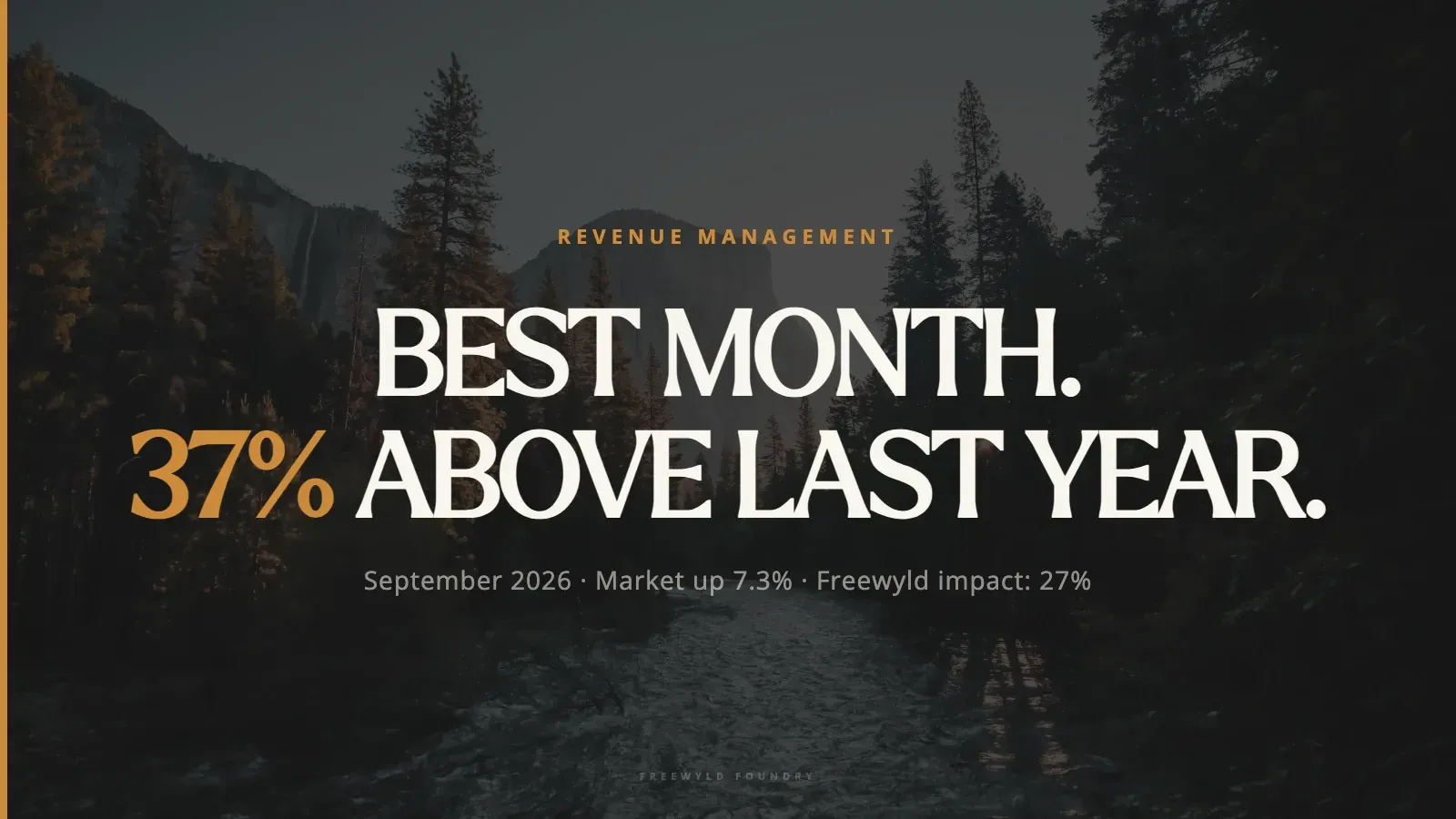
STR Market Update September 2026: Record Month, Vrbo's Commission Shift, and What AI Means for Revenue Management
September 2026 was the best month in Freewyld Foundry's history. Comparable units finished 37% above last September while the broader market grew 7.3%, producing a 27% measurable impact, the highest we have ever recorded. Here is what drove that gap, which markets led and which lagged, what Vrbo just changed about commissions, and what the industry learned about AI in revenue management at GuestyVal in Madrid.
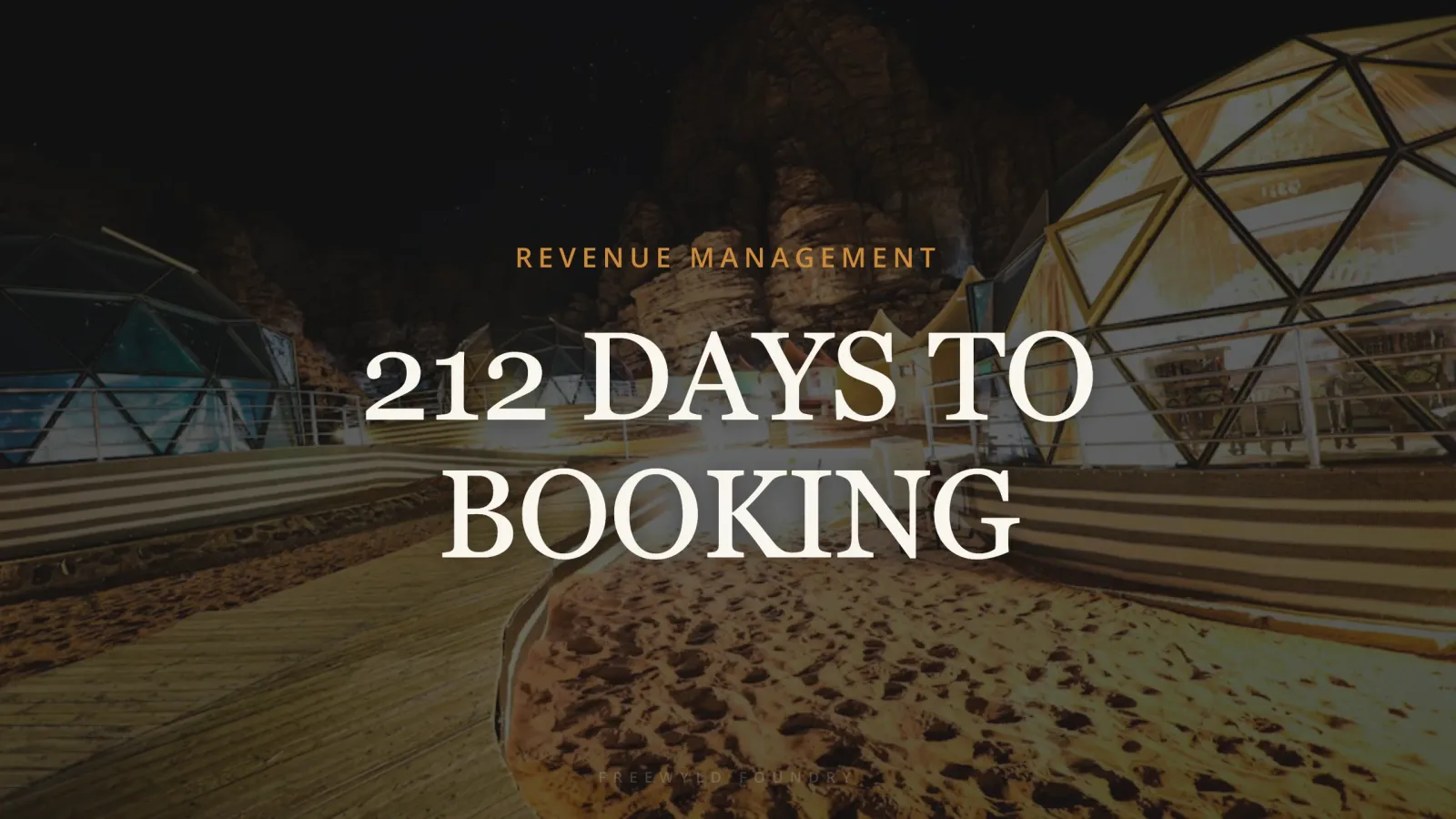
PriceLabs Portfolio Occupancy-Based Adjustment: A Strategy for Unique STR Inventory
When your STR inventory runs at 97% occupancy year-round with a 212-day booking window, standard PriceLabs market factors actively work against you. Here is how to build a custom Portfolio Occupancy-Based Adjustment strategy for destination and unique inventory.
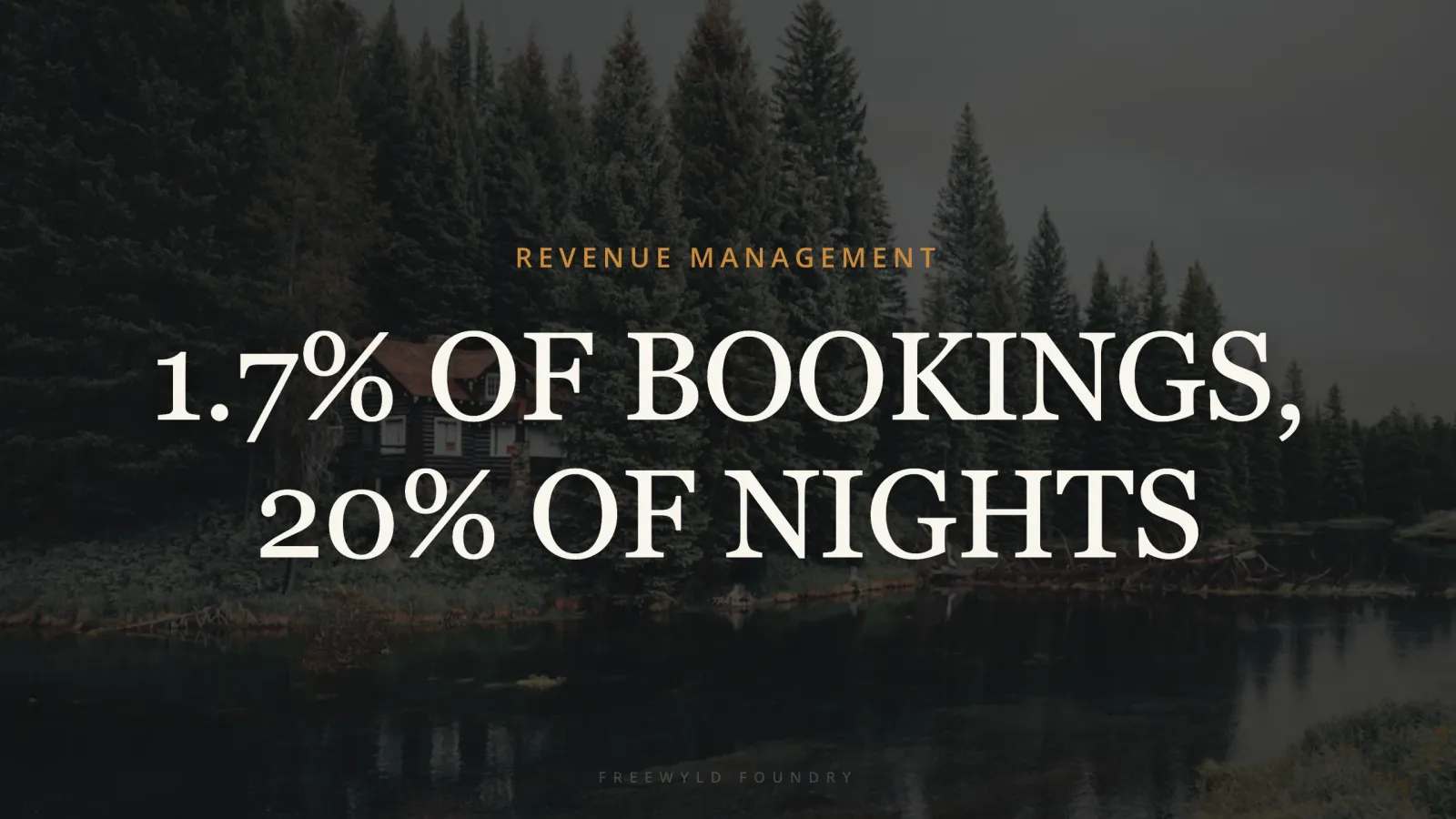
Midterm Rentals for STR Operators: The Data, the Math, and How to Start
Midterm rentals are already happening in most STR portfolios. 39% of short-term rental operators have received at least one 30+ night booking. Here is the data, the occupancy math, and how to be intentional about it without abandoning your short-term rental business.